So here’s what happened.
I’m running Linux Mint 22.1 with the 6.8.0 kernel on my Lenovo LOQ laptop. Life is good — I’m coding, tinkering, and everything is smooth… or so I thought.
 My Network Specs
But then, the Wi-Fi started acting up. Every 20–30 minutes, the connection would randomly drop. The only fix was to disconnect and reconnect manually, a process that took about half a minute — and even that didn’t always work.
Now, I can’t fully blame Linux or Mint for this. The real culprit was the notoriously unreliable Realtek RTL8852BE Wi-Fi card (also referred to as RTW8852BE — same hardware, different naming conventions). I’d had similar issues on Windows too, but at least Lenovo provides official Windows drivers that somewhat fix the problem there.
Enter: The Community Driver
After some frustration-fueled Googling, I found a GitHub repository by lwfinger that contains community-maintained drivers for the RTL8852BE chipset family.
I followed the instructions carefully and even applied additional tweaks for Ubuntu-based systems and Lenovo-specific quirks. The installation seemed to go well — the system could scan nearby networks. But every time I tried to connect to an access point, it just got stuck on “Connecting…” and never actually succeeded.
Annoyed, I decided to roll back and revert to the previous setup. I ran the uninstall script provided in the repository, which removed the custom driver. But suddenly, my Wi-Fi stopped working entirely.
The Lesson Begins
Here’s where I learned two key concepts:
1. Linux Device Drivers = Kernel Modules
In Linux, most device drivers (including Wi-Fi drivers) are implemented as kernel modules. These are pieces of code that can be dynamically loaded into or unloaded from the running kernel — no need to reboot or recompile the entire OS.
- These modules typically have the
.koextension (short for kernel object). - You can load a module using
insmodormodprobe, and remove it usingrmmod. - This modular approach allows Linux to support a wide range of hardware on demand.
When I uninstalled the custom driver, I had unloaded its module — but I forgot to reload the original kernel module that supported my Wi-Fi card. Oops.
2. Blacklisting Kernel Modules
Sometimes, you may want to prevent specific kernel modules from loading automatically — maybe because they cause conflicts or aren’t needed.
This is done by blacklisting them in config files located in /etc/modprobe.d/.
For example:
# /etc/modprobe.d/blacklist.conf
blacklist rtw_8852be
This prevents the module from being auto-loaded at boot.
More Research (and a Bit of Hope)
After digging through forums (like this Arch Linux thread), I learned that I could manually load the driver module using:
sudo modprobe rtw_8852be
Running lsmod | grep rtw confirmed it was loaded.
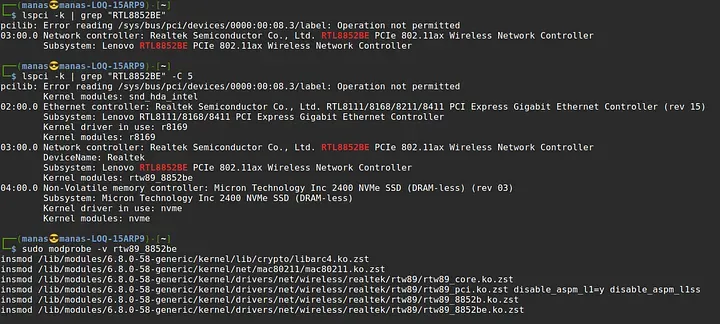 Finally a breath of fresh air
There’s also a known Launchpad bug (#2017277) about this Realtek chipset. Apparently, kernel 6.1 OEM had backported support for RTL8852BE from kernel 6.2 — which initially worked well but started regressing in later updates. So, I wasn’t alone.
I tried everything suggested — compiling drivers, manually loading modules, tweaking configs… and now?
The Wi-Fi works perfectly on my college network — but still drops frequently on my home network. And weirdly, all my other devices have zero issues on the same home Wi-Fi.
At least I got the Wi-Fi card functioning again… sort of. On the bright side, I no longer have to roam around with a Wi-Fi dongle sticking out of my laptop — so I’ll take what I can get. This fight isn’t over, I’ll come back again… stronger.
TL;DR
- Realtek Wi-Fi cards (especially RTL8852BE) are a pain.
- Linux drivers = kernel modules. Learn to
modprobe,rmmod, and manage them properly. - Don’t forget to reload your original module after uninstalling a custom one.
- Sometimes, the fix doesn’t fix everything — but it’s still progress.